How to Create a Sea World Sudoku Pack
If you want to make a sea world Sudoku pack, the fastest workflow is to build the puzzles first in Sudoku Creator, export the pack to PPTX, and then add the underwater theme in PowerPoint afterwards.
Sudoku is a logic puzzle where each symbol can appear only once in each row and column. In a themed version like this, the structure stays the same, but the usual numbers are replaced with images, so a crab, fish, coral, or dolphin can stand in for the four values in the puzzle.
This works especially well because the app handles the puzzle generation, page layout, and answer key pages for you, while PowerPoint gives you room to shape the finished resource visually.
If you want a visual target before you start, use the finished PowerPoint version below as the inspiration for the final look.
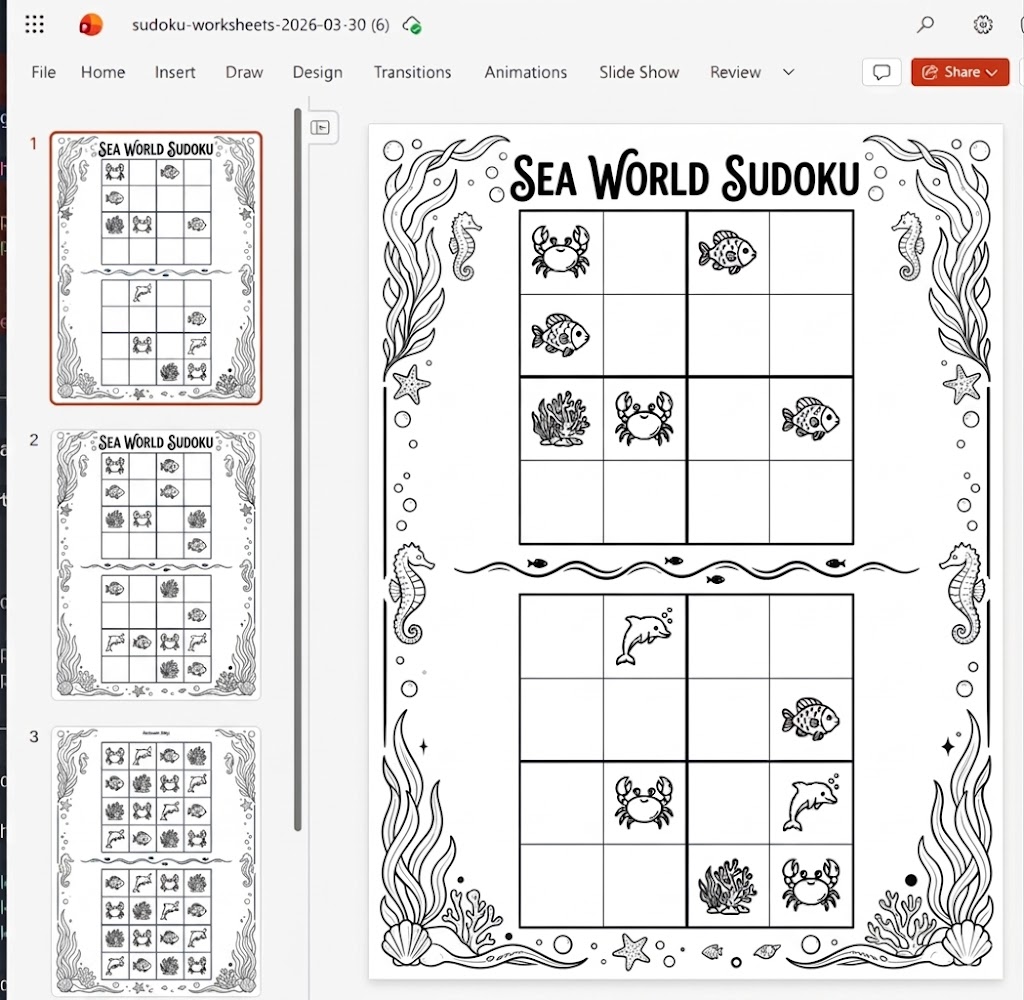
Inspiration image: A finished sea world worksheet after exporting from Sudoku Creator and adding the themed design in PowerPoint.
Step 1: Set up the puzzle
In the Puzzle Setup panel, start with these controls:
- Set Subgrid Rows to
2 - Set Subgrid Cols to
2 - Check that the grid hint says
4 × 4 grid - Set Difficulty to
Medium - Set Clues to
6
For this version, a 2 x 2 setup gives you a 4 × 4 Sudoku. That makes the puzzle much more beginner-friendly and works well if you want a simpler sea world activity for younger students.
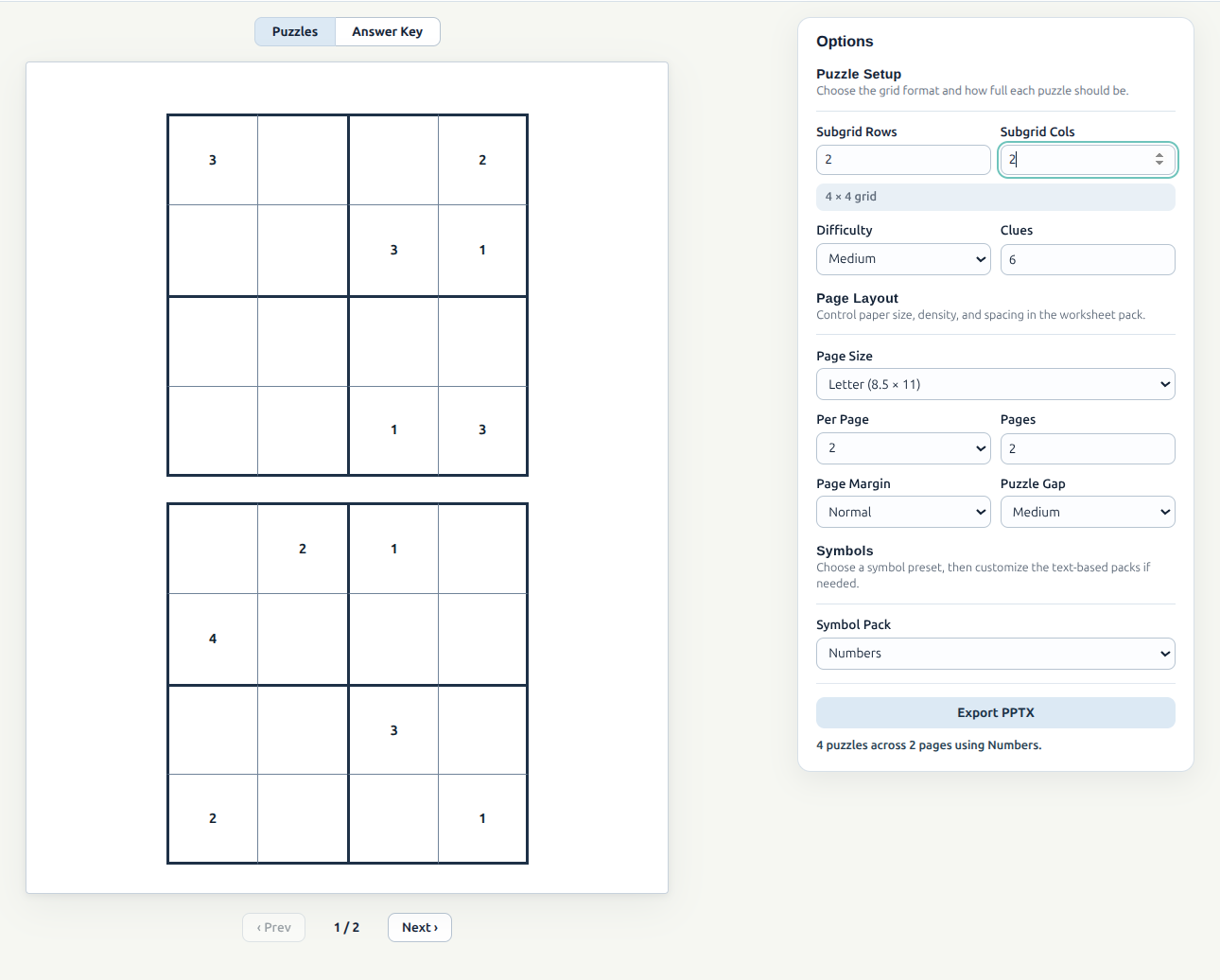
Screenshot 1: The starting setup uses a 2 x 2 subgrid, which creates a 4 × 4 Sudoku with 6 clues.
Step 2: Set up the worksheet pages
Next, move to Page Layout. This controls how the worksheet pack will look before you even open PowerPoint.
For example, you could use:
- Page Size:
Letter - Per Page:
2 - Pages:
2 - Page Margin:
Normal - Puzzle Gap:
Medium
That gives you 4 puzzles across 2 pages because the app generates Pages × Per Page puzzles. This is a good small pack to start with before you move into PowerPoint and add the sea world styling.
Step 3: Choose the symbol style
This is the point where the pack stops looking like a standard Sudoku and starts feeling themed. Changing Symbol Pack from Numbers to Images swaps the usual digits for sea world artwork while keeping the same puzzle logic underneath.
Then in Image Symbols:
- Click Choose Files
- Upload
4images - Match one image to each value in the
4 × 4grid
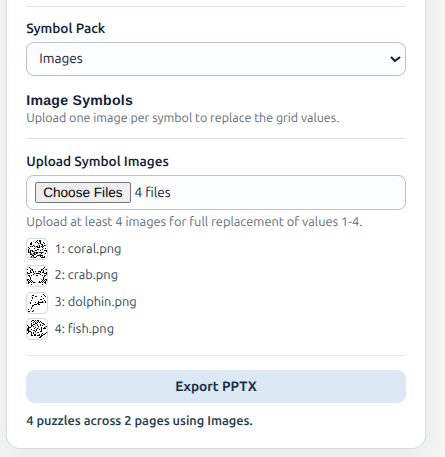
Screenshot 2: Switch Symbol Pack to Images, then upload the four sea world image files.
Step 4: Check the preview
As soon as the files are uploaded, the preview updates automatically. Before exporting, use the preview area to check:
- The puzzle density looks right
- The page layout feels balanced
- The uploaded sea world symbols are clear and easy to tell apart
- The pack has the number of pages you want
Use the Puzzles and Answer Key buttons at the top of the preview to switch between the worksheet pages and the solutions. If your pack has more than one preview page, use Prev and Next to move through it.
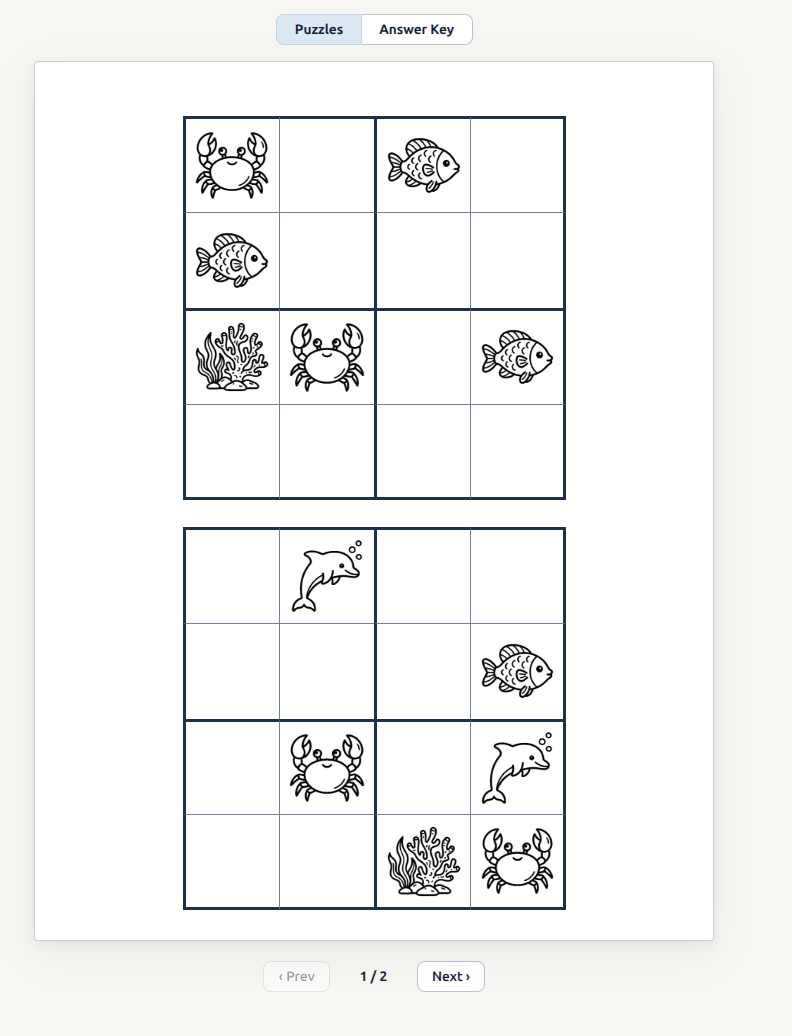
Screenshot 3: The preview updates automatically and shows the crab, coral, dolphin, and fish symbols in the puzzle pages.
Step 5: Export the pack
When you are happy with the preview, click Export PPTX.
If you are still in demo mode, export will stay locked. In that case:
- Open the License tab
- Enter your license key
- Click Activate License
- Return to Workspace
- Click Export PPTX
The app exports a PowerPoint file with the worksheet pages first and then matching Answer Key pages after that.
Step 6: Customize the pack in PowerPoint
This is where the export starts to feel like a finished product rather than a generated worksheet. The Sudoku grids are already built, so PowerPoint becomes the place to shape the presentation around them.
At this stage, the sea world theme can come through with a cover page, ocean borders, bubbles, coral, seaweed, a simple header or footer, student directions, and page numbers or branding. Those details do a lot of the work in making the pack feel cohesive without changing the puzzle itself.
The most effective versions usually keep the grid as the focal point. Because Sudoku depends on clarity, it helps when the artwork stays in the margins, banners, corners, or background and the puzzle area remains clean and easy to read.
Final workflow recap
The easiest method is:
- Generate the puzzles in Sudoku Creator
- Check both Puzzles and Answer Key in the preview
- Export to PPTX
- Add the sea world design in PowerPoint
That gives you the speed of automatic Sudoku generation and the freedom to make the finished resource look polished and themed.